Showing posts with label curves. Show all posts

Friday, March 16, 2012

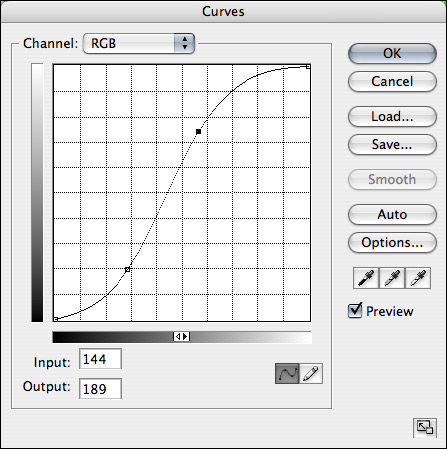
What is a “Slanted S” in a curves layer?

Question

I am trying to do a Photoshop tutorial, seems easy, but I can't understand one phrase: `First, I add a curves layer and create a slanted S. What does slanted S mean? Maybe I should "write" S in curves editor? Thanx.

P.S. The tutorial is big, and you can use Ctrl+F to find an occurence of this words in the text.

I just don't understand the meaning of "Slanted S". It's just my assumption that it means draw an S-shaped curve.

Asked by Daria

Answer

Use 2 points to create an 'S' shape in the curves editor.

See: http://www.chromasia.com/tutorials/online/curves/images/basic_s_curve.jpg

Answered by cadmium

Thursday, October 6, 2011

How to interpret various curves present in post-processing applications?

Question

Could anyone to explain me or point me to some resource which explains how to interpret various curves in post-processing applications ? I'm using UFRaw, and RawStudio.

Answer

RawStudio tends to have a very low-contrast default curve. I find that pictures are quite muddy and it takes a bit of adjusting to make them punch.

Generally I start by creating a node near the very bottom (dark) end and pulling it down for contrast, and then creating a node near the midtones and bringing it up. Hard to explain exactly what shape I'm talking about; check out this screenshot. See the way it goes down a tiny bit and then curves up gracefully in the middle? (I find that I can't bring up the midtones too much, or else I blow out the highlights.)

Screenshot of a good curve in Rawstudio

I haven't ever used UFRaw, but it sounds like it has a similar 'base curve/correction curve' concept as my fave raw processor, DarkTable (great program, but only available in Linux). The base curve should already be set for you, and it imitates the sort of tone curve that your camera would automatically apply to a JPEG. In actual practice, the pre-set base curve should look a lot like the curve in the above screenshot.

You can think of the base curve as a 'sensible default' curve. It takes the rather low-contrast RAW image from the CCD and compresses the shadows/highlights to make it look like it did in the camera preview. (Rawstudio's rather muddy base curve is more true to what the camera sees, but nobody likes that look. As an interesting aside, most consumer-grade film is high-contrast, because people tend to prefer it. Terrible for taking really subtle, artistic photos with lots of tonal range, but it makes your average snapshot look exciting. Digital cameras do the same thing with JPEGs.)

Then you go and fine-tune in the 'correction' curve (or whatever it's called in UFRaw). It took me a while to understand this concept, that they both do essentially the same thing – but the base curve does it on the incoming picture and the correction curve does it on the post-processed picture.

In a nutshell, don't touch the base curve unless you're getting consistently bad results with each photo. Adjust the other curve instead, and you should be good!

For a more in-depth description of what's going on in UFRaw with the two curves, check this discussion out: In ufraw, how to use the two curves? The answerer has a different opinion from me; they think it's better to adjust the base curve rather than the correction curve.

Saturday, September 3, 2011

How does the Curves tool work in GIMP?

Question

I started using GIMP recently, and came across an option called Curves under the Colors menu. What does this tool do, and how do I use it correctly?

I get some good colors if I make a graph in 'S' shape. But what exactly is the meaning of it? How do I use this tool to enhance my photographs?

Answer

The GIMP's curves tool is virtually identical to PhotoShop's Curves tool. Almost all photo manipulation tools have a way of doing that action. There are a number of good explanations of it out on the internet if you look for photoshop: http://www.google.com/search?hl=en&q=curves+adjustment+in+photoshop

this one however is fairly thorough in it's explanation of what it's doing: http://www.cambridgeincolour.com/tutorials/photoshop-curves.htm

(disclaimer, it's been a good 3 years since I've used the GIMP, it's possible they've changed it since then, but I highly doubt it since the curves tool is one of the more fundamental advanced editing tools.)

Friday, September 2, 2011

How to understand curves option of colors in GIMP?

Question

I started using GIMP recently, and came across an option called Curves under the Colors menu. What is the significance of it and how to use it correctly.

I get some good colors if I make a graph in 'S' shape. But what exactly is the meaning of it? How do I use this tool to enhance my photographs?

Answer

The GIMP's curves tool is virtually identical to PhotoShop's Curves tool. Almost all photo manipulation tools have a way of doing that action. There are a number of good explanations of it out on the internet if you look for photoshop: http://www.google.com/search?hl=en&q=curves+adjustment+in+photoshop

this one however is fairly thorough in it's explanation of what it's doing: http://www.cambridgeincolour.com/tutorials/photoshop-curves.htm

(disclaimer, it's been a good 3 years since I've used the GIMP, it's possible they've changed it since then, but I highly doubt it since the curves tool is one of the more fundamental advanced editing tools.)

Understanding curves option of colors in GIMP?

Question

I started using GIMP recently, and came across an option called Curves under the Colors menu. What is the significance of it and how to use it correctly.

I get some good colors if I make a graph in 'S' shape. But what exactly is the meaning of it? How do I use this tool to enhance my photographs?

Answer

The GIMP's curves tool is virtually identical to PhotoShop's Curves tool. Almost all photo manipulation tools have a way of doing that action. There are a number of good explanations of it out on the internet if you look for photoshop: http://www.google.com/search?hl=en&q=curves+adjustment+in+photoshop

this one however is fairly thorough in it's explanation of what it's doing: http://www.cambridgeincolour.com/tutorials/photoshop-curves.htm

(disclaimer, it's been a good 3 years since I've used the GIMP, it's possible they've changed it since then, but I highly doubt it since the curves tool is one of the more fundamental advanced editing tools.)

Sunday, July 10, 2011

Is there a way to get Gimp to use color curves from a Technicolor CineStyle S-curve lookup table?

Question

Is there a way to import a Technicolor CineStyle S-curve lookup table in Gimp->Color->Curves?

The lookup table is just a text file with 256 lines, with a numeric value (0..255) on each line:

0    ...    17    18    18    19    20    21    22    ...    244    244    245    246    246    247    247    248    ...    255

Looking at the way Gimp saves Curves settings, it creates a more verbose file:

# GIMP curves tool settings
(time 0)
(channel value)
(curve
    (curve-type smooth)
    (n-points 17)
    (points 34 -1.000000 -1.000000 0.054878 0.000000 ... -1.000000 -1.000000)
    (n-samples 256)
    (samples 256 0.000000 0.000000 0.000000 ... ))
(time 0)
(channel red)
(curve
    (curve-type smooth)
    (n-points 17)
    (points 34 0.000000 0.000000 ...

and so on for the Green, blue and alpha channel

Is there a way to make Gimp accept the lookup table from sample 1 or is there a script that converts it to the format in sample 2?

Answer

Here is what I did:

Given the input file with one number per line:

0    ...    17    18    18    19    20    21    22    ...    244    244    245    246    246    247    247    248    ...    255

I copied it into Spreadsheet, divided each number by 255, and formatted all the values to 6 decimal places.

After that, I edited a saved Gimp curve, removed the Red, Green, Blue and Alpha channels and the points used to define the curve, replaced the 256 values with the new ones from Spreadsheet.

This is what it looks like:

# GIMP curves tool settings

(time 0) (channel value) (curve (curve-type smooth) (n-samples 256) (samples 256 0.000000 0.000000 0.000000 0.000000 0.000000 0.000000 0.000000 0.000000 0.000000 0.003922 0.003922 0.003922 0.003922 0.003922 0.007843 0.007843 0.007843 0.011765 0.011765 0.011765 0.015686 0.015686 0.019608 0.019608 0.019608 0.023529 0.023529 0.027451 0.031373 0.031373 0.035294 0.035294 0.039216 0.039216 0.043137 0.047059 0.047059 0.050980 0.054902 0.058824 0.058824 0.062745 0.066667 0.070588 0.070588 0.074510 0.078431 0.082353 0.086275 0.090196 0.094118 0.098039 0.101961 0.101961 0.105882 0.109804 0.113725 0.117647 0.125490 0.129412 0.133333 0.137255 0.141176 0.145098 0.149020 0.152941 0.156863 0.160784 0.168627 0.172549 0.176471 0.180392 0.184314 0.192157 0.196078 0.200000 0.203922 0.211765 0.215686 0.219608 0.227451 0.231373 0.235294 0.243137 0.247059 0.250980 0.258824 0.262745 0.266667 0.274510 0.278431 0.286275 0.290196 0.294118 0.301961 0.305882 0.313725 0.317647 0.325490 0.329412 0.337255 0.341176 0.349020 0.352941 0.360784 0.364706 0.372549 0.376471 0.384314 0.388235 0.396078 0.400000 0.407843 0.411765 0.419608 0.427451 0.431373 0.439216 0.443137 0.450980 0.454902 0.462745 0.466667 0.474510 0.482353 0.486275 0.494118 0.498039 0.505882 0.509804 0.517647 0.525490 0.529412 0.537255 0.541176 0.549020 0.552941 0.560784 0.568627 0.572549 0.580392 0.584314 0.592157 0.596078 0.603922 0.607843 0.615686 0.619608 0.627451 0.631373 0.639216 0.643137 0.650980 0.654902 0.662745 0.666667 0.674510 0.678431 0.686275 0.690196 0.698039 0.701961 0.709804 0.713725 0.717647 0.725490 0.729412 0.737255 0.741176 0.745098 0.752941 0.756863 0.760784 0.768627 0.772549 0.776471 0.784314 0.788235 0.792157 0.800000 0.803922 0.807843 0.811765 0.819608 0.823529 0.827451 0.831373 0.835294 0.839216 0.847059 0.850980 0.854902 0.858824 0.862745 0.866667 0.870588 0.874510 0.878431 0.882353 0.886275 0.890196 0.894118 0.898039 0.901961 0.905882 0.909804 0.913725 0.917647 0.921569 0.921569 0.925490 0.929412 0.933333 0.937255 0.937255 0.941176 0.945098 0.949020 0.949020 0.952941 0.956863 0.956863 0.960784 0.964706 0.964706 0.968627 0.968627 0.972549 0.972549 0.976471 0.976471 0.980392 0.980392 0.984314 0.984314 0.988235 0.988235 0.988235 0.992157 0.992157 0.992157 0.992157 0.996078 0.996078 0.996078 0.996078 1.000000 1.000000 1.000000 1.000000 1.000000 1.000000 1.000000 1.000000 1.000000 1.000000)) # end of curves tool settings

When imported into Gimp, this is how the curve looks like: Gimp color curves